Delta Force 4:3 Tool Guidline
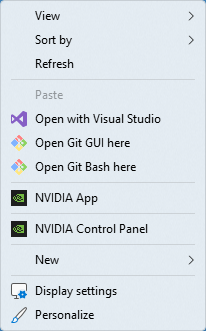
Right-click → NVIDIA Control Panel In the left-hand menu
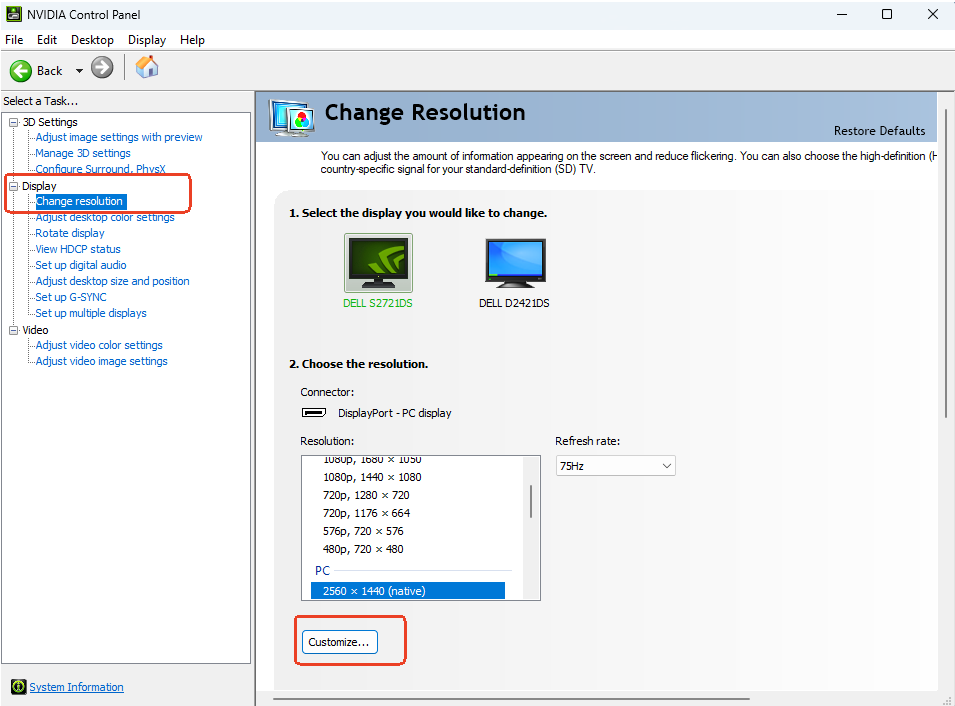
select ‘Display’ → Change resolution, then click ‘Custom’
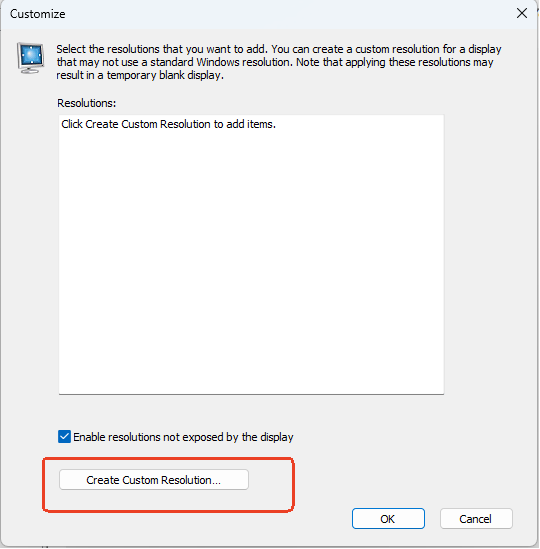
Adjust the horizontal pixels and vertical scan lines to the target resolution For different screen specifications
we recommend creating the following resolutions
|
|
Lock aspect ratio to 4:3 (To maintain clarity, this may result in a black screen) |
Lock aspect ratio to 4:3
|
|
|
|
|
|
|
|
|
|
|
|
|
|
|
|
|
Once you have made the changes, click the 'Test' button
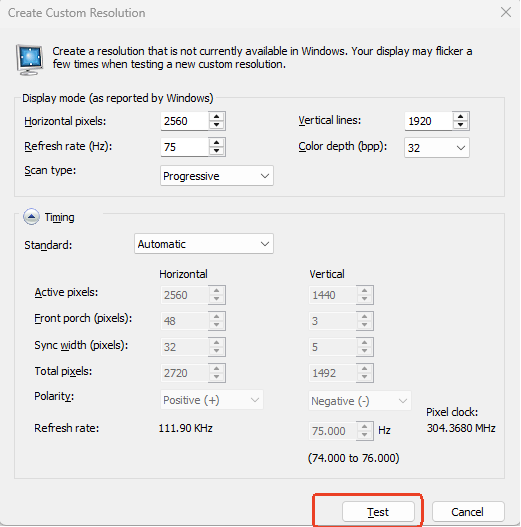
Confirm resolution
Go to 'Display' → Adjust desktop size and position. Under the 'Scaling' options, select 'Full screen' and tick the box to 'Override scaling set by games and applications', then click 'Apply'. Note: If this option is not available, please set your laptop to 'Dedicated graphics direct mode';
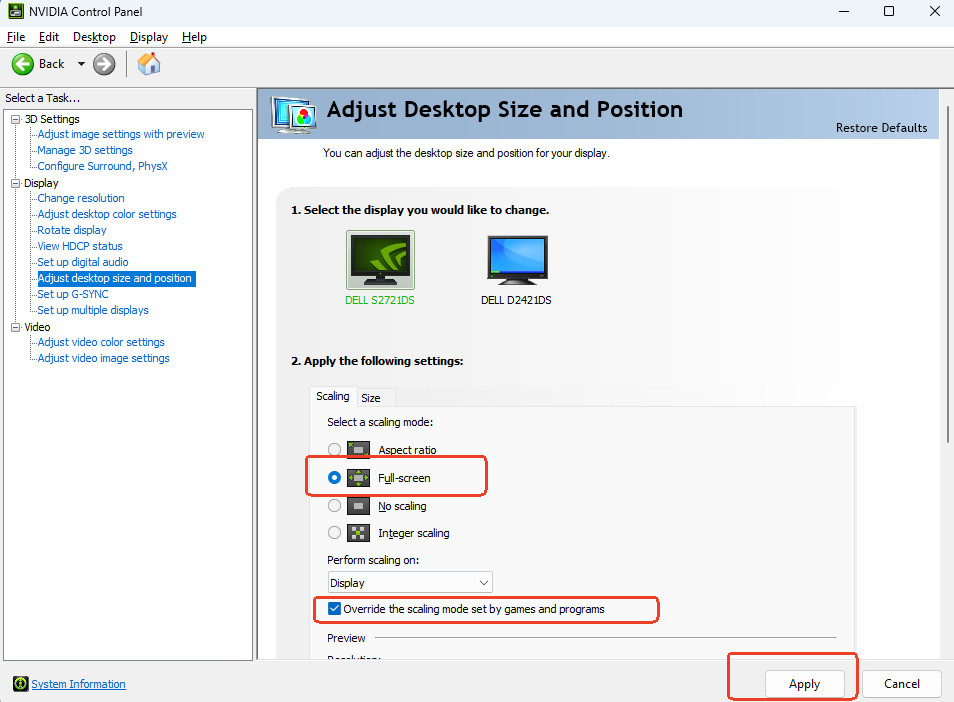
Once you have finished configuring the settings, return to the tool and click ‘One-Click Setup’
Open AMD Radeon Settings or AMD Software: Adrenalin Edition
Go to the Display options, locate the Scaling mode, and select Full Panel
If this does not work, you can enable it under GPU Scaling.
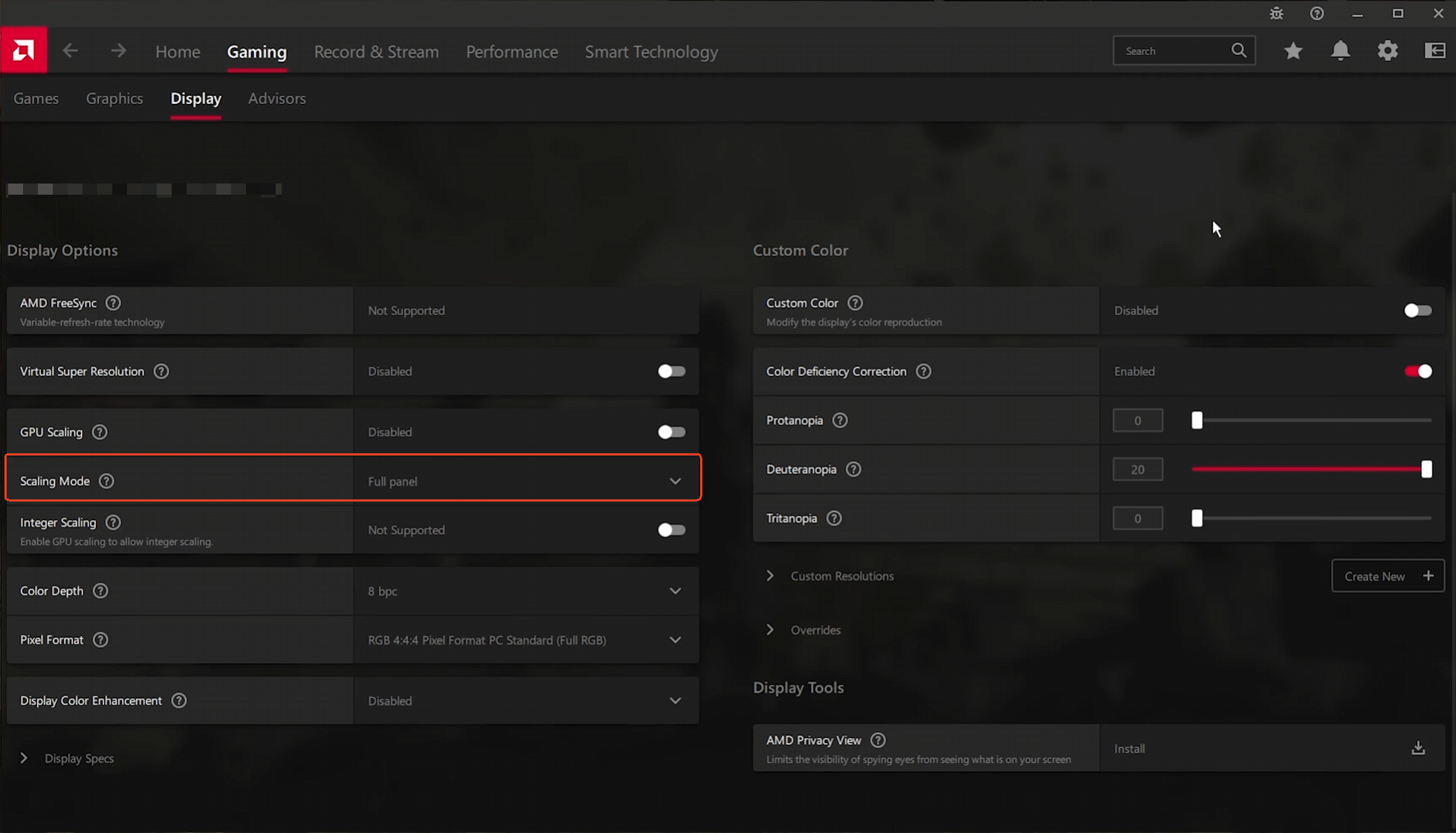
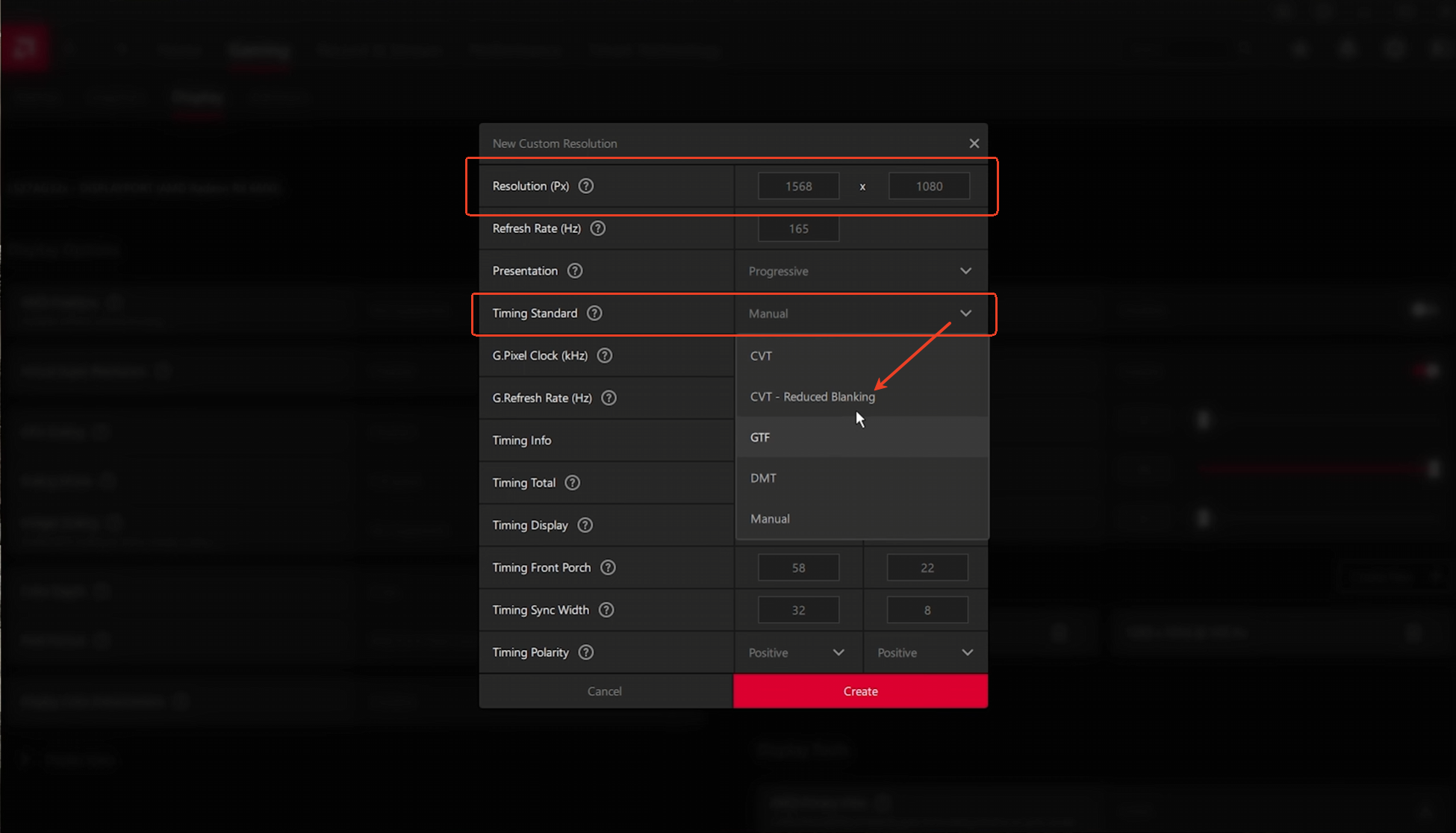
Click 'Custom resolution', then click 'Create new'
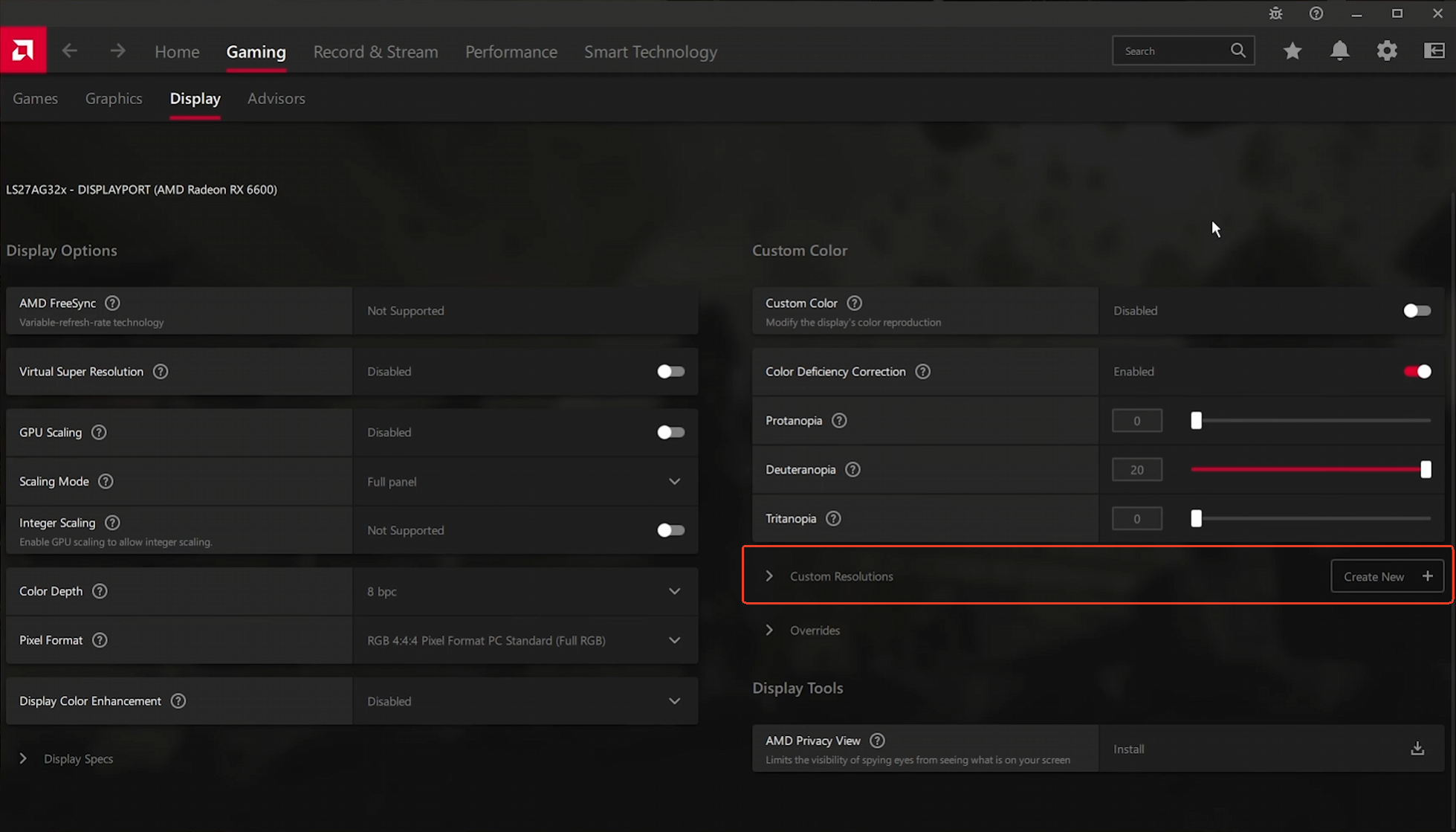
For different screen sizes, we recommend the following resolutions
|
|
Lock aspect ratio to 4:3 (To maintain clarity, this may result in a black screen)
|
Lock aspect ratio to 4:3
|
|
|
|
|
|
|
|
|
|
|
|
|
|
|
|
|
Select the time series standard to reduce blanking Once you have made your changes, click the 'Create' button